
Auto-save & sync
ADE saves everything as you work, keeps snapshots you can roll back to, and can share your setup between machines through a git repo you own.
Auto-save
Everything below is written to disk within about a second of changing, so a crash, a force-quit or a reboot brings it all back:
- tabs, split layouts, each terminal’s folder and scrollback
- open file, browser, fleet and orchestrator tabs
- the unsent scratchpad draft, notes and prompt history
- settings, themes and saved workspaces
- orchestrator history
The files live in ADE’s data folder, under state/:
| Platform | Folder |
|---|---|
| macOS | ~/Library/Application Support/com.betterterminal.dev |
| Linux | ~/.local/share/com.betterterminal.dev |
Snapshots
ADE takes a snapshot of your saved state at startup and every 10 minutes, and keeps the newest 20. To roll back, open Settings → Sync, find the snapshot under Local snapshots and click Restore, then restart ADE. The state before the restore is snapshotted too, so a restore can itself be undone.
Sync between machines
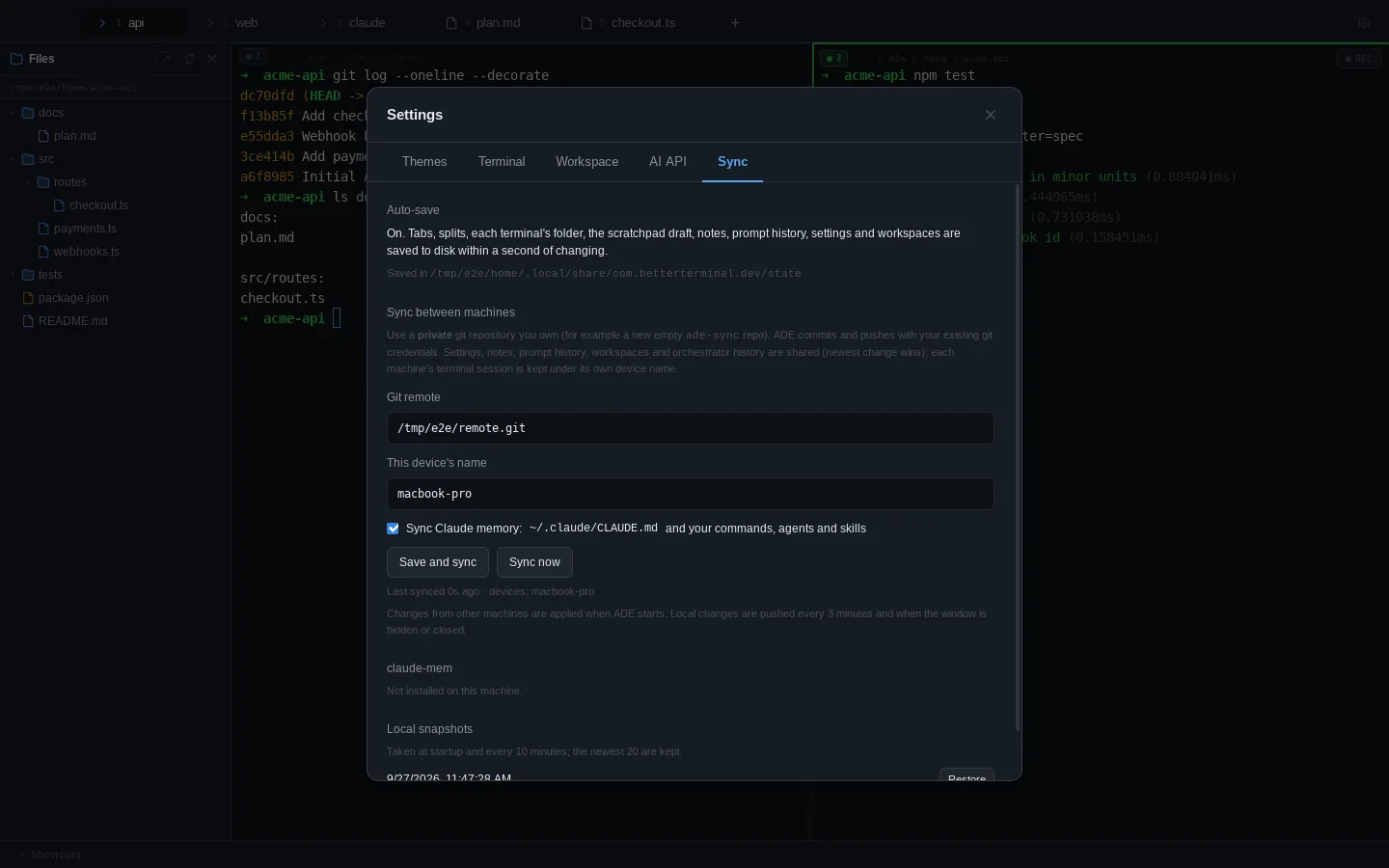
Sync uses a private git repository you own: an empty repo named ade-sync on GitHub or anywhere else works. ADE commits and pushes with your existing git credentials (SSH keys or a credential helper); it never asks for a password.
- Create an empty private repository.
- In ADE, open Settings → Sync (⌘, ).
- Paste the repo URL, for example
git@github.com:you/ade-sync.git, and give this device a name. - Choose whether to sync your Claude memory (below), then click Save and sync.
- Do the same on your other machines, with the same URL and a different device name.
What is shared
| Data | How it syncs |
|---|---|
| Settings, themes, workspaces, prompt history, notes, orchestrator and agent history | Shared by every machine; the newest change wins |
| Terminal session and scratchpad draft | Kept per device, never applied to another machine |
| Claude memory (optional) | Merged file by file (see below) |
| API keys, terminal scrollback | Never synced |
When it runs
- At launch, ADE pulls first and applies other machines’ changes before anything loads.
- While you work, local changes are pushed every 3 minutes and when the window is hidden.
- On close, a final push runs.
- Sync now in Settings → Sync runs one right away.
Because changes from other machines are applied at launch, restart ADE to pick them up.
Claude memory
With Sync Claude memory on, ADE also syncs ~/.claude/CLAUDE.md and your custom commands/, agents/ and skills/.
A file changed on only one machine is copied to the others. If the same file was edited on two machines between syncs, your local copy is kept and the other machine’s version is saved beside it as <name>.sync-conflict. Merge them by hand and delete the conflict file.
Symlinked folders inside ~/.claude are skipped.
claude-mem
If you use claude-mem, ADE detects it but doesn’t copy its database: it’s a live SQLite file that would be corrupted by copying between machines. Use claude-mem’s own Cloud Sync for it.
Turning sync off
Clear the Git remote field and click Turn off sync. Your local state stays as it is, and the repo keeps its history.