
Files & preview
Browse the project, open any file in a viewer that fits it, and watch documents update while an agent writes them.
File browser
Press ⌘B
to show the folder of the active terminal. It follows cd and refreshes when files change. The .* button shows or hides hidden files.
File viewer
Click a file in the browser (or a file path in the terminal) and it opens in a tab with the right view:
| File | How it opens |
|---|---|
| Markdown | Rendered, with tables, images and ```mermaid diagrams. Source switches to the editor. |
| Page through and zoom. | |
Word (.docx) |
A readable rendering of the document. |
| Images | PNG, JPEG, GIF, SVG, WebP, BMP, ICO. |
| HTML | A static render (scripts don’t run). Source switches to the editor. |
Mermaid (.mmd) |
A live diagram with a chat box that edits it through a local Ollama model. |
| Anything else | The Monaco code editor with syntax highlighting. ⌘S |
| saves. |
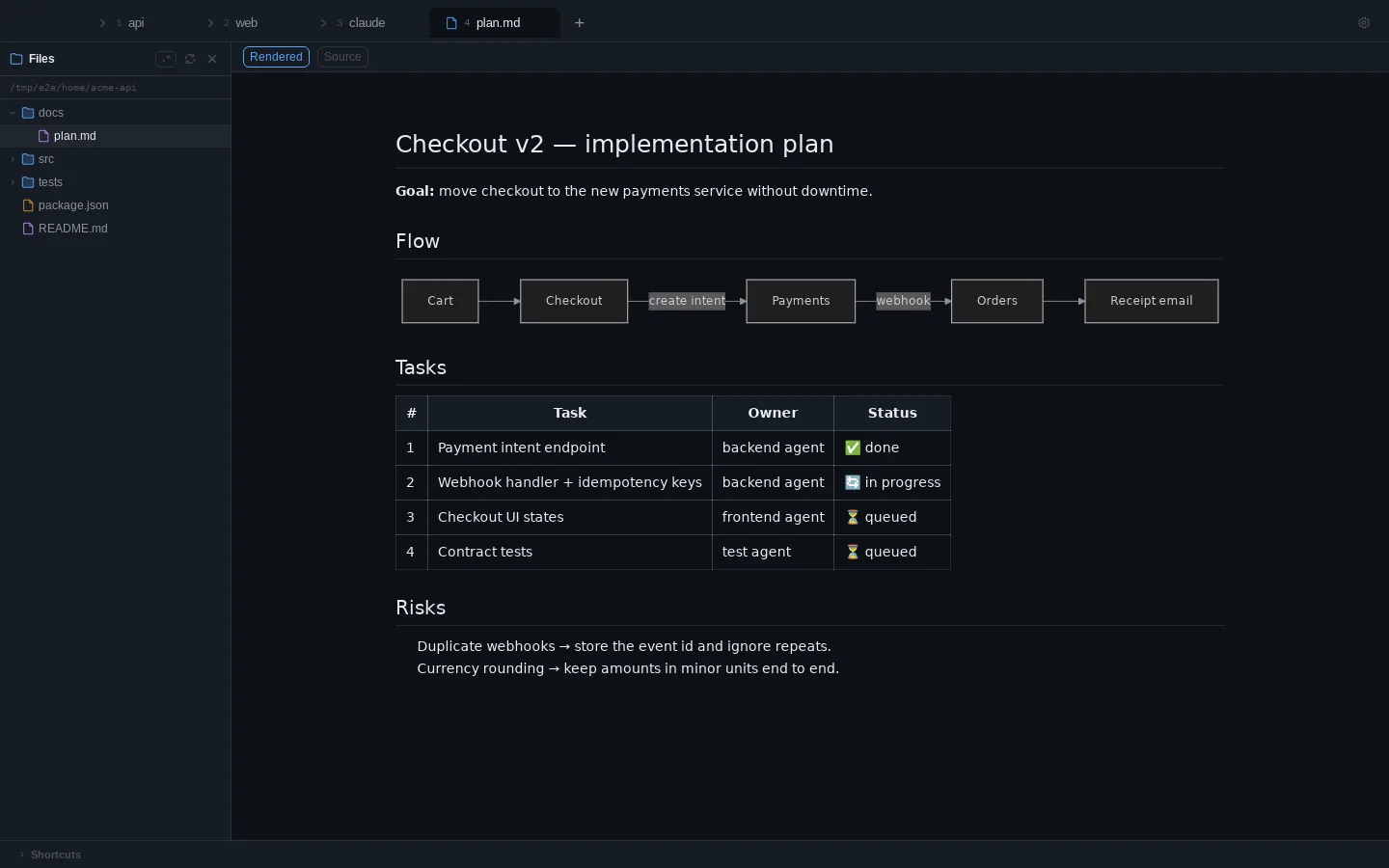
In rendered documents, links behave the way you’d expect: web links open in your browser, #section links scroll to the heading, and relative links such as ../README.md open that file in a tab. Relative images load from the document’s own folder.
Preview panel
Press ⌘⇧B to open a preview beside the terminal, or click a document path in the terminal. It shows Markdown, HTML, PDFs and images, and refreshes whenever the file is saved, handy for watching an agent write a spec. PDFs page and zoom here with the same viewer the file tab uses, so they render the same on macOS and Linux.
HTML in the preview may run scripts, for pages that need them. They run isolated from the app.
Safe by default
Markdown and documents come from repositories you may not control, and the app has access to your terminals. Everything rendered is sanitized first, so raw HTML or a javascript: link in a README can’t run code in ADE.